


New form has been introduced to perform simple adjustment directly from the Project. This form will display posted Hour/Expense transactions of all the projects. User can view projects/subprojects in a tree structure and select a node to get the respective transactions.
Parameter Setup
On the Projects360 parameter form, under the Simple adjustments tab, a new parameter ‘Activate for project’ has been introduced in the Simple adjustments reimagined’ section. When this checkbox is turned on ‘Yes’, the simple adjustment feature is activated for project. This provides users with the flexibility to use the simple adjustment feature without billing schedules.
Go to Project management and accounting > Setups > projects360 parameters > Simple adjustments Tab.
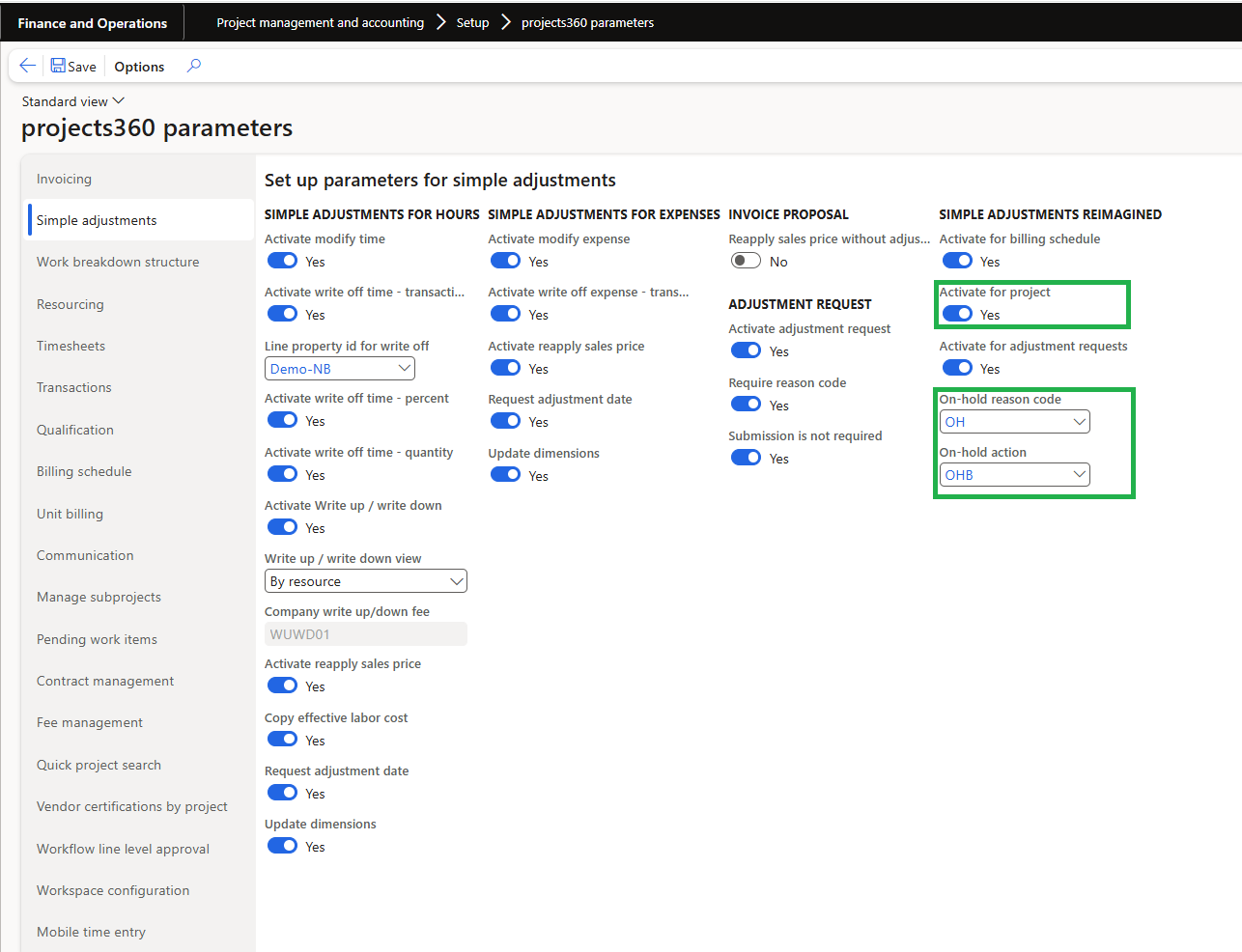
Details of the fields available on this tab are as follows:
| Fields | Description |
| Activate for Project | When this check box is turned on, simple adjustment feature gets activated for Project. |
| On-hold reason code | Select the reason code which will be used to create the adjustment request header when transactions are put on hold from simple adjustments form. This parameter will be active when ‘Activate adjustment request’, ‘Activate for billing schedule’, ‘Activate for project’ and ‘Activate billing schedule’ parameter is set to “Yes”. |
| On-hold action | This will display ‘’On-hold Billing’’ action type, which will show on the adjustment request lines. This parameter will be active when ‘Activate adjustment request’, ‘Activate for billing schedule’, ‘Activate for project’ and ‘Activate billing schedule’ parameter is set to “Yes”. |
Simple adjustment form for Project
Users can perform simple adjustments on selected Hour transaction such as “modify time”, “write off time – transactions”, “write off time – percent”, “modify work location”, “reapply sales price”. Users can also be able to perform simple adjustments on selected Expense transaction such as “modify expenses”, “write off expense”.
User will be able to put the transactions ‘On-hold’ and ‘Release transactions’ for billing. When the transactions are put on hold, adjustment request gets automatically created based on the parameter setup.
User will be able to filter the transaction based on the Invoice status. If ‘All’ option is selected both chargeable and non-chargeable transactions will be displayed.
_Go to Project management and accounting > Projects > All projects > Manage > Process > Simple adjustments. _
_Go to Project management and accounting > Projects > My projects > Manage > Process > Simple adjustments. _
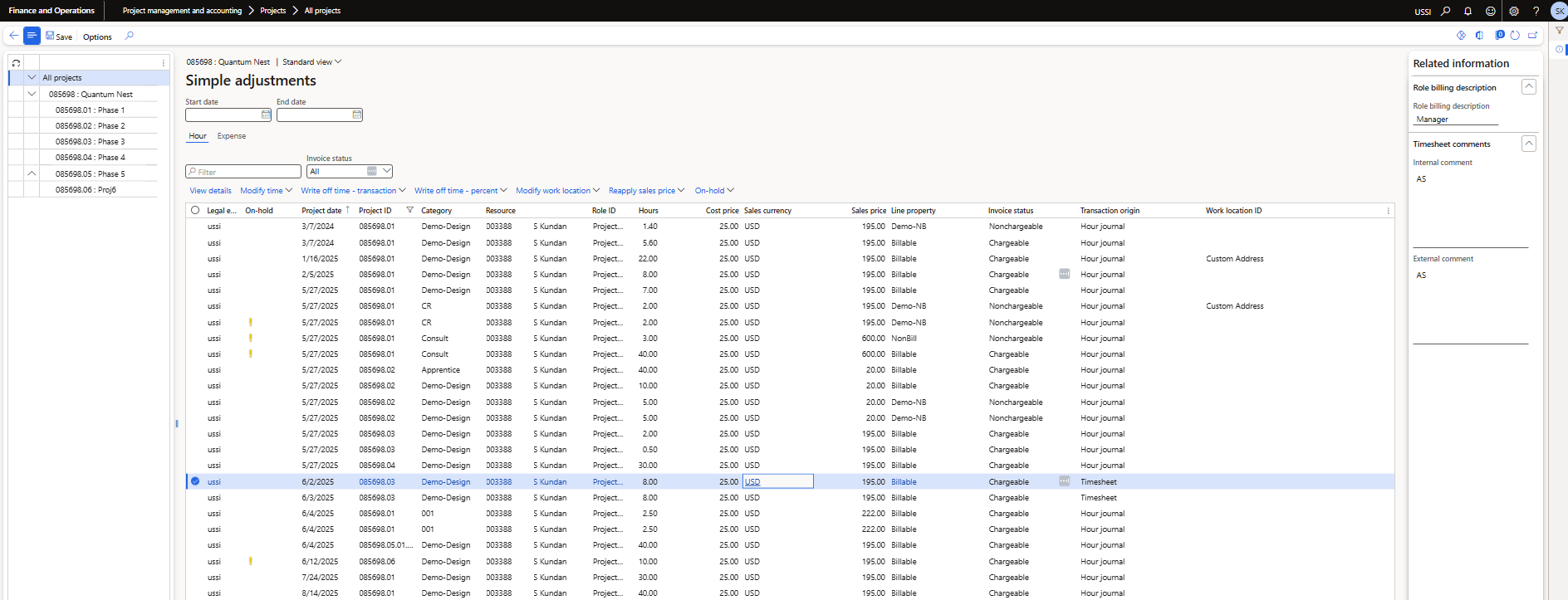
This form comprises of two sections:
Left hand section – In this section all projects and subprojects will be listed from the project.
Right hand section – In this section transactions are displayed based on the selected project. If the parent project is selected, then all the transactions including subprojects are displayed.
Details of the fields available on the header section on this form are as follows:
| Fields | Description |
| Start date | User can define start date. By default it will be blank. |
| End date | User can define end date. By default it will be blank. |
Details of the buttons available on the Hour tab on this form are as follows:
| Fields | Description |
| View Details | User can view hour transactions showing the details of the specific selected transaction |
| Modify time | User can modify time to other activity, Category or Project for the Hour transactions. Also, user can partially move time to another project, activity, role or category. If the user prefers not to update the sales price and cost price, they can unmark the options to update cost price and sales price during modify time. |
| Write off time – transaction | User can write off time to non-chargeable for the Hour transactions. |
| Write off time – percent | User can partially write off time by percent to non-chargeable on the Hour transactions. |
| Reapply sales price | User can reapply the sales price on the Hour transactions. |
| Modify work location | User can modify work location for the hour transactions. |
| On Hold | Under this menu button, users will be having two options: |
| · On-hold – This button allows users to put the transactions On-hold for billing. | |
| · Release transactions – Once the transaction is release then such will be remove from On-hold. |
Details of the fields available on the Hour tab on this form are as follows:
| Field | Description |
| Legal entity | Display legal entity |
| On-hold | Display yellow warning icon against the transaction which are On-hold. |
| Project date | Display project date. |
| Project ID | Display project ID. |
| Category | Display category. |
| Resource | Display resource name with resource id. This field is filterable. |
| Role ID | Display Role id for posted hour transaction. This field is filterable. |
| Hours | Display hour entered on posted hour transaction. |
| Cost Price | Display cost price from posted hour transaction. |
| Sales currency | Display sales currency from posted hour transaction. |
| Sales price | Display sales price from posted hour transaction. |
| Line property | Display Line property. |
| Invoice status | Display invoice status and it will only display chargeable and non-chargeable transaction status. |
| Transaction origin | Display transaction origin for posted hour transaction. |
| Work location | Display work location. |
Details of the fields available on the fact box on this form are as follows:
| Field | Description |
| Role billing description | Displays role billing description defined for each of the resource role. |
| Internal comments | Display internal comments from the timesheet. |
| External comments | Display external comments from the timesheet. |
 |
Note – When user perform adjustment for hour transaction, the corresponding timesheet comments will appear under internal and external comments section of the fact box for newly generated transaction. |
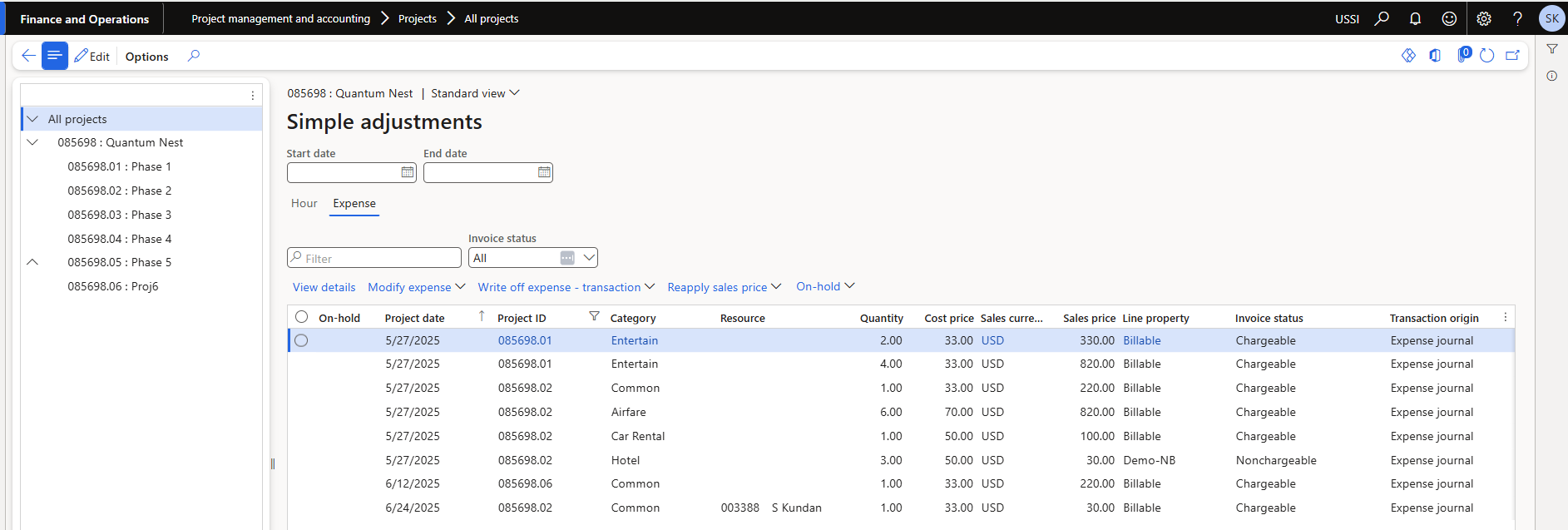
Details of the buttons available on the Expense tab on this form are as follows:
| Fields | Description |
| View Details | User can view expense transactions showing the details of the specific selected transaction. |
| Modify Expense | User can modify expense to other activity, Category or Project on the Transaction details inquiry for the Expense transactions. If the user prefers not to update the sales price and cost price, they can unmark the options to update cost price and sales price during modify expense. |
| Write off expense – transaction | User can write off expense to non-chargeable on the transaction details inquiry for the expense transactions. |
| On-Hold | Under this menu button, users will be having two options. |
| · On-hold – This button allows users to put the transactions On-hold for billing. | |
| · Release transactions – Once the transaction is release then such will be remove from On-hold. |
Details of the fields available on the Expense tab on this form are as follows:
| Field | Description |
| On-hold | Display yellow warning icon against the transaction which are On-hold. |
| Project date | Display project date. |
| Project ID | Display project ID. |
| Category | Display category. |
| Resource | Display resource name with resource id. This field is filterable. |
| Quantity | Display quantity entered on posted expense transaction. |
| Cost price | Display cost price from posted expense transaction. |
| Sales currency | Display sales currency from posted expense transaction. |
| Sales price | Display sales price from posted expense transaction. |
| Line property | Display Line property. |
| Invoice status | Display invoice status and it will only display chargeable and non-chargeable transaction status. |
| Transaction origin | Display transaction origin for posted expense transaction. |