

Parameter Setup
A set of parameters are introduced in the projects360 parameters under the Quick project search tab to configure search functionality on the timesheets and expenses reports. This quick search functionality will list out all the projects (based on the searched text) in an hierarchical order enabling user to select the right project while submitting their time and expense.
Go to Projects management and accounting > Setups > projects360 parameters > Quick project search tab.
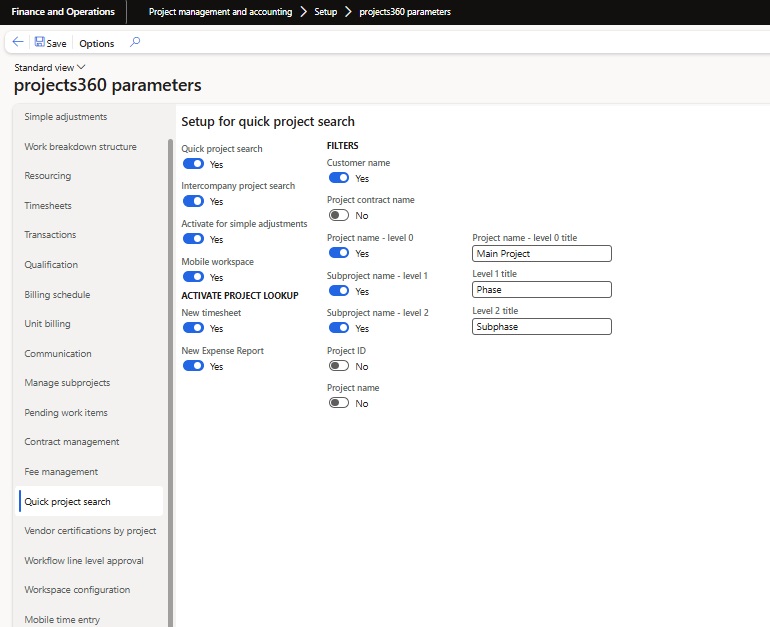
Below are details of the fields available on this tab –
| Field name | Description |
| Quick project search | This field allows to activate the quick project search functionality on timesheets and expense reports. |
| Intercompany project search | Enabling this parameter will allow searching the desired project across all the legal entities. If this is off then, search will look for only project within the current legal entity. |
| Activate for simple adjustments | This field allows to activate the quick project search functionality on simple adjustment form. |
| Mobile workspace | Enabling this parameter will allow searching the desired project across all the legal entities in the timesheet power app. |
| New timesheet | If this parameter is enabled, it will allow users to utilize the ‘Quick Project Search Lookup’ functionality on the Timesheet form. |
| New expense report | If this parameter is enabled, it will allow users to utilize the ‘Quick Project Search Lookup’ functionality within the Expense Header and the Expense Management workspace. |
| Customer name | If parameter is turned on, projects can be search on the timesheets and expenses reports based on customer. |
| Project contract name | If parameter is turned on, projects can be search on the timesheets and expenses reports based on project contract. |
| Project name – level 0 | If parameter is turned on, projects can be search on the timesheets and expenses reports based on root/base project. |
| Project name – level 0 title | Once you enable the ‘Project name – level 0’ parameter, this field will enabled for you enter a friendly name to be shown the timesheets and expense report search window. |
| Subproject name – level 1 | If parameter is turned on, projects can be searched on the timesheets and expenses reports based on level 1/sub-projects. |
| Subproject name – level 1 title | Once you enable the ‘Subproject name – level 1’ parameter, this field will enabled for you enter a friendly name to be shown the timesheets and expense report search window. |
| Subproject name – level 2 | If parameter is turned on, projects can be searched on the timesheets and expenses reports based on level 2/sub-subprojects. |
| Subproject name – level 2 title | Once you enable the ‘Subproject name – level 2’ parameter, this field will enabled for you enter a friendly name to be shown the timesheets and expense report search window. |
| Project ID | If parameter is turned on, projects can be search on the timesheets and expenses reports based on actual Project ID. |
| Project name | If parameter is turned on, projects can be search on the timesheets and expenses reports based on actual Project name. |
Existing data update
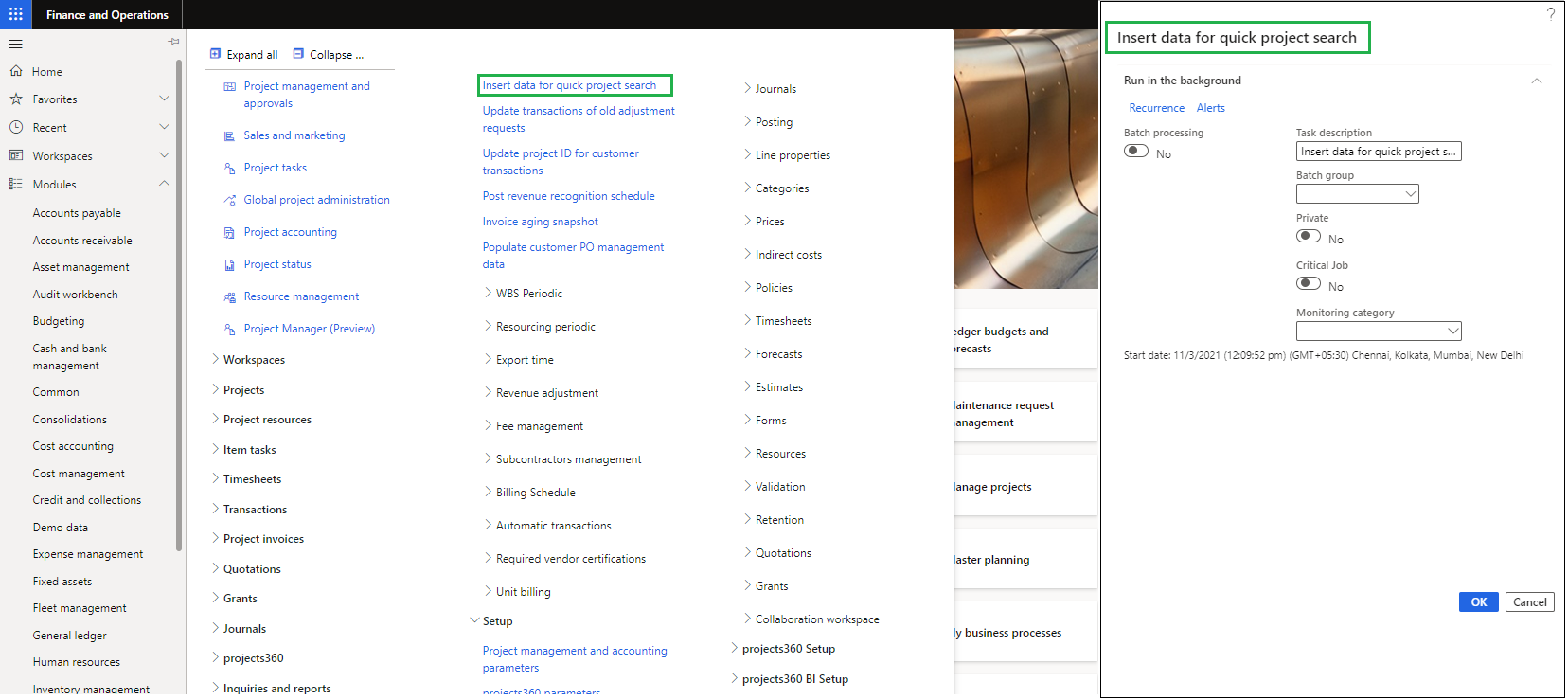
All the clients who has created projects prior to activating this feature or upgrading from previous version needs to mandatorily run a onetime batch process. This batch process will update the relevant/required quick project search tables facilitating the use of the feature in different places in application. Batch job can be found at the following menu path –
Go to Projects management and accounting > projects360 Periodic > Insert data for quick project