


New form has been introduced to perform additional adjustment request from the adjustment request form. The adjustment request form has been redesigned to include enhanced functionality and improved usability. User can perform additional adjustment request from this new form. User can view projects/subprojects in a tree structure and select a node to get the respective transactions.
Parameter Setup
On the Projects360 parameter form, under the Simple adjustments tab, a new parameter ‘Activate for adjustment requests’ has been introduced in the ‘Simple adjustments reimagined’ section. When this checkbox is turned on ‘Yes’, the additional adjustment request feature is activated. This provides users with the flexibility to perform additional adjustments for the same transaction.
Go to Project management and accounting > Setups > projects360 parameters > Simple adjustments Tab.
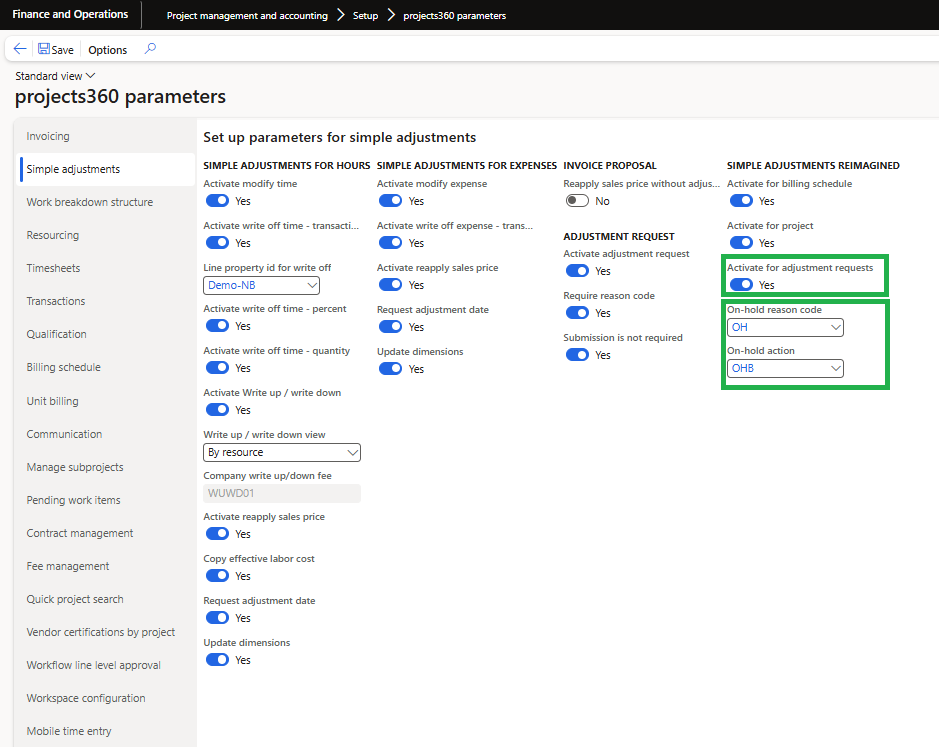
Details of the fields available on this tab are as follows:
| Fields | Description |
| Activate for adjustment requests | If this parameter is set to “Yes,” a tree view structure will be displayed on the adjustment request form and it enables the additional adjustment on the adjustment request form. |
| On-hold reason code | Select the reason code which will be used to create the adjustment request header when transactions are put on hold from simple adjustments form. This parameter will be active when ‘Activate adjustment request’, ‘Activate for billing schedule’, ‘Activate for project’, ‘Activate for adjustment requests’ and ‘Activate billing schedule’ parameter is set to “Yes”. |
| On-hold action | This will display ‘’On-hold Billing’’ action type, which will show on the adjustment request lines. This parameter will be active when ‘Activate adjustment request’, ‘Activate for billing schedule’, ‘Activate for project’, ‘Activate for adjustment requests’ and ‘Activate billing schedule’ parameter is set to “Yes”. |
Adjustment requests
The adjustment request form now opens in a new view, presenting a tree structure that displays all projects and their subprojects. This form comprises of two sections:
Left hand section – In this section all projects and subprojects will be listed from the project.
Right hand section – In this section transactions are displayed based on the selected project. If the parent project is selected, then all the transactions including subprojects are displayed.
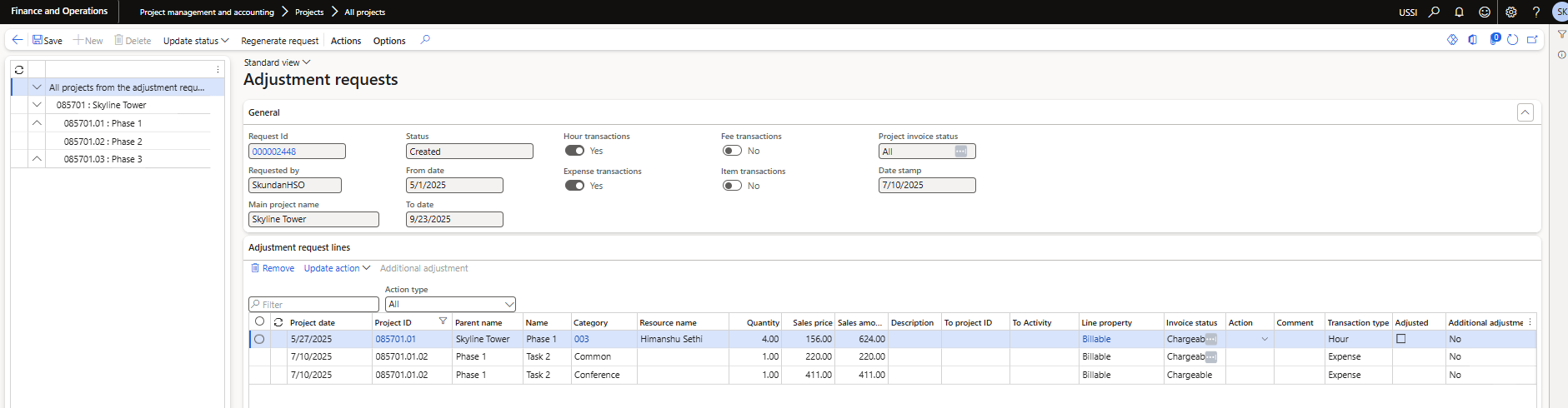
Additional adjustment requests
Users can make additional adjustment requests for the same transaction directly from the adjustment requests form. This form allows users to create, edit, and delete these additional requests. The actions available for additional adjustment requests are determined by the action set on the adjustment request form. For example, if the selected action is “Modify Time,” then user will be able to perform only modify time from the additional adjustment requests.
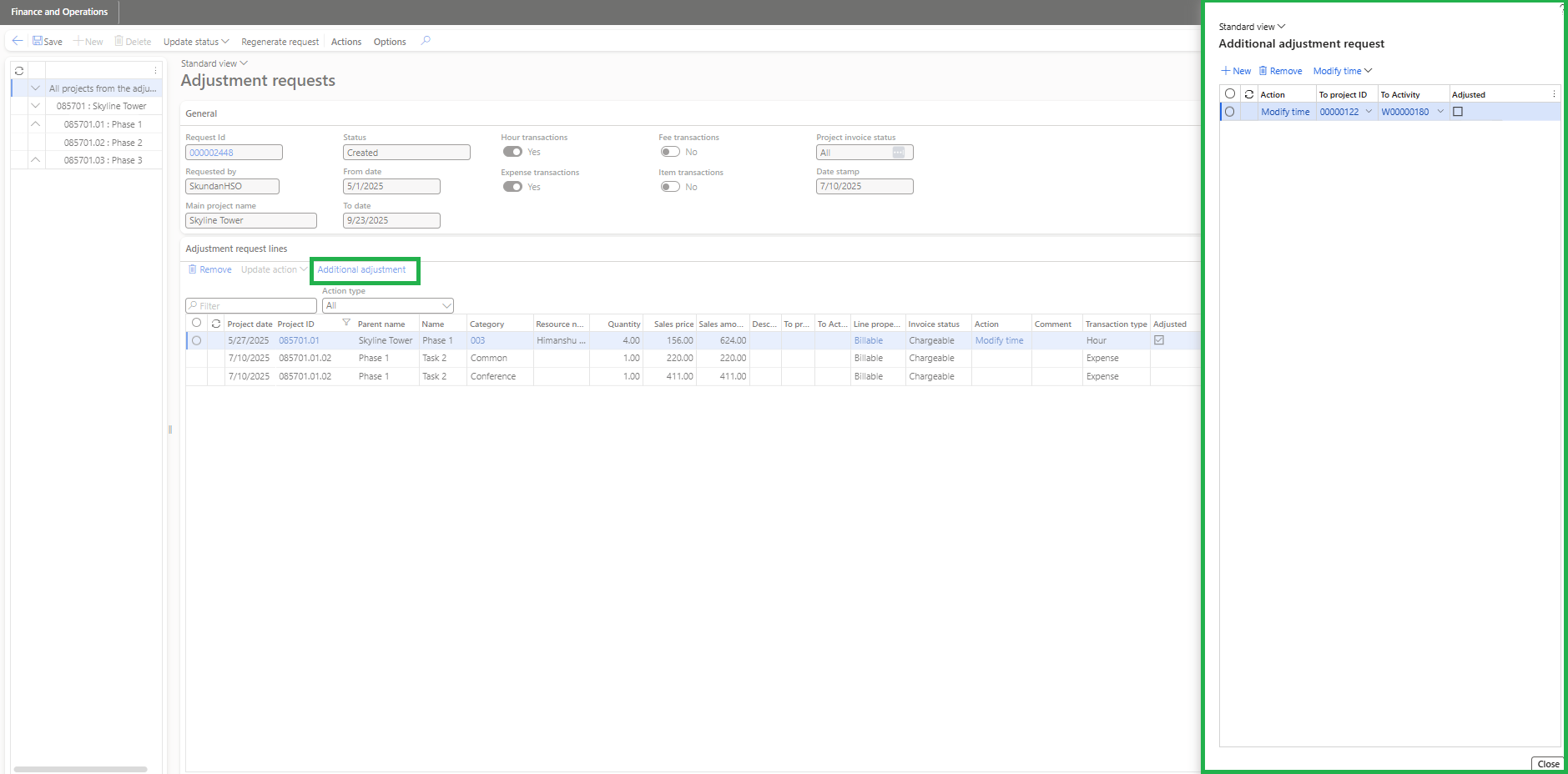
Details of the button available on adjustment request form is as follows:
| Fields | Description |
| Additional adjustment | User can generate additional adjustment request for the same original transactions. |
Details of the fields available on the Adjustment request lines tab are as follows –
| Fields | Description |
| Additional adjustment | This non-editable field shows ‘No’, ‘Created’, or ‘Adjusted’ based on whether a related record is deleted, created, or marked as adjusted, respectively. |
Details of the fields available on this form are as follows:
| Fields | Description |
| Action | This field will be pre-filled with the value specified in the Action field of the Adjustment request lines. |
| To Project ID | The project specified in this field will be used for the adjustment process, overriding any other values entered in the process dialog box. This field will be editable only when the Action Type is either “Modify Time” or “Modify Expense”. |
| To Activity | The activity specified in this field will be used for the adjustment process, overriding any other values entered in the process dialog box. This field will be editable only when the Action Type is either “Modify Time” or “Modify Expense”. |
| Adjusted | User can partially write off time by percent to non-chargeable on the Hour transactions. |
| Reapply sales price | This field will be automatically marked when the additional adjustment is performed for a transaction. |
Details of the buttons on this form are as follows:
| Fields | Description |
| New | User can create new additional adjustment request through this button. |
| Remove | User can remove additional adjustment request through this button. |
| Modify time | User can modify time to other activity, Category or Project. Also user can partially move time to another project, activity or category for hour transactions. |
| Write off time-transaction | User can write off time to non-chargeable for hour transactions. |
| Write off time-percent | User can write off percentage of time to non-chargeable for hour transactions. |
| Modify expense | User can modify time to other activity, Category or Project for expense transactions. |
| Write off expense-transaction | User can write off time to non-chargeable for expense transactions. |
| Re-apply sales price | User can reapply the sales price on the hour transactions and expense transactions. When sales price is reapplied ‘Sales currency’ and ‘Sales price’ only will be by default as ‘Yes’ while performing the sales price adjustment. |