


Pre-billing summary review
New form is introduced to maintain all the “Pre-billing summary” versions generated. Once the pre-billing summary is generated, a tiff file will be opened for user to review where users will be able to highlight, makes notes, corrections or any edits using toolbar. This report displays the progress summary section provides an insight of progress of each subproject and transaction summary section provides an insight of all the posted transactions which includes chargeable and non-chargeable transactions for each subproject with fee type.
On the right-hand side of the pre-billing summary review document ‘comments’ functionality is added for the users to put in their thoughts and if any clarifications required. Comments can be added on each attachment and history of it will be maintained.
Apart from above capabilities, user can open the tiff attachment and related billing schedule.
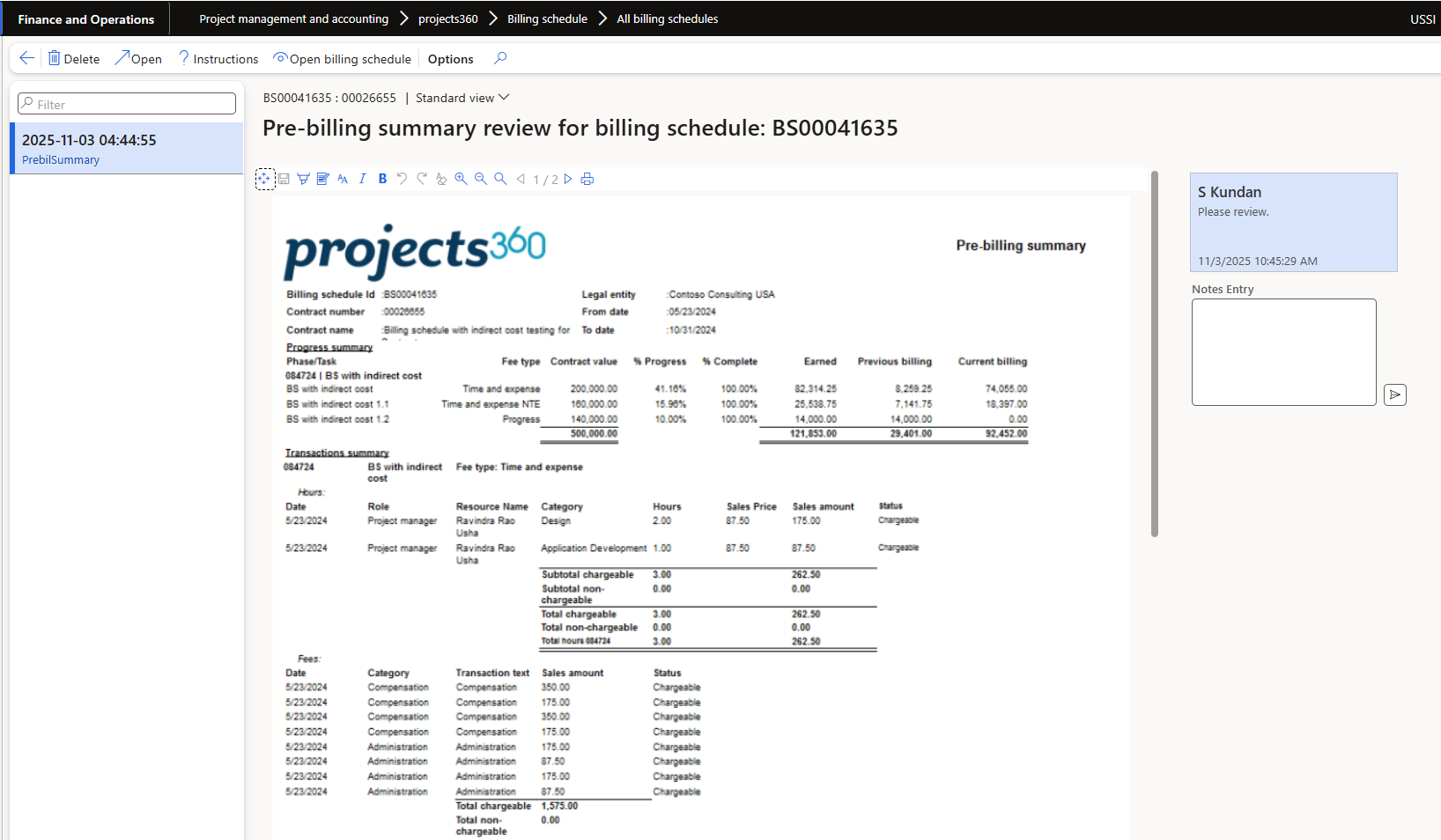
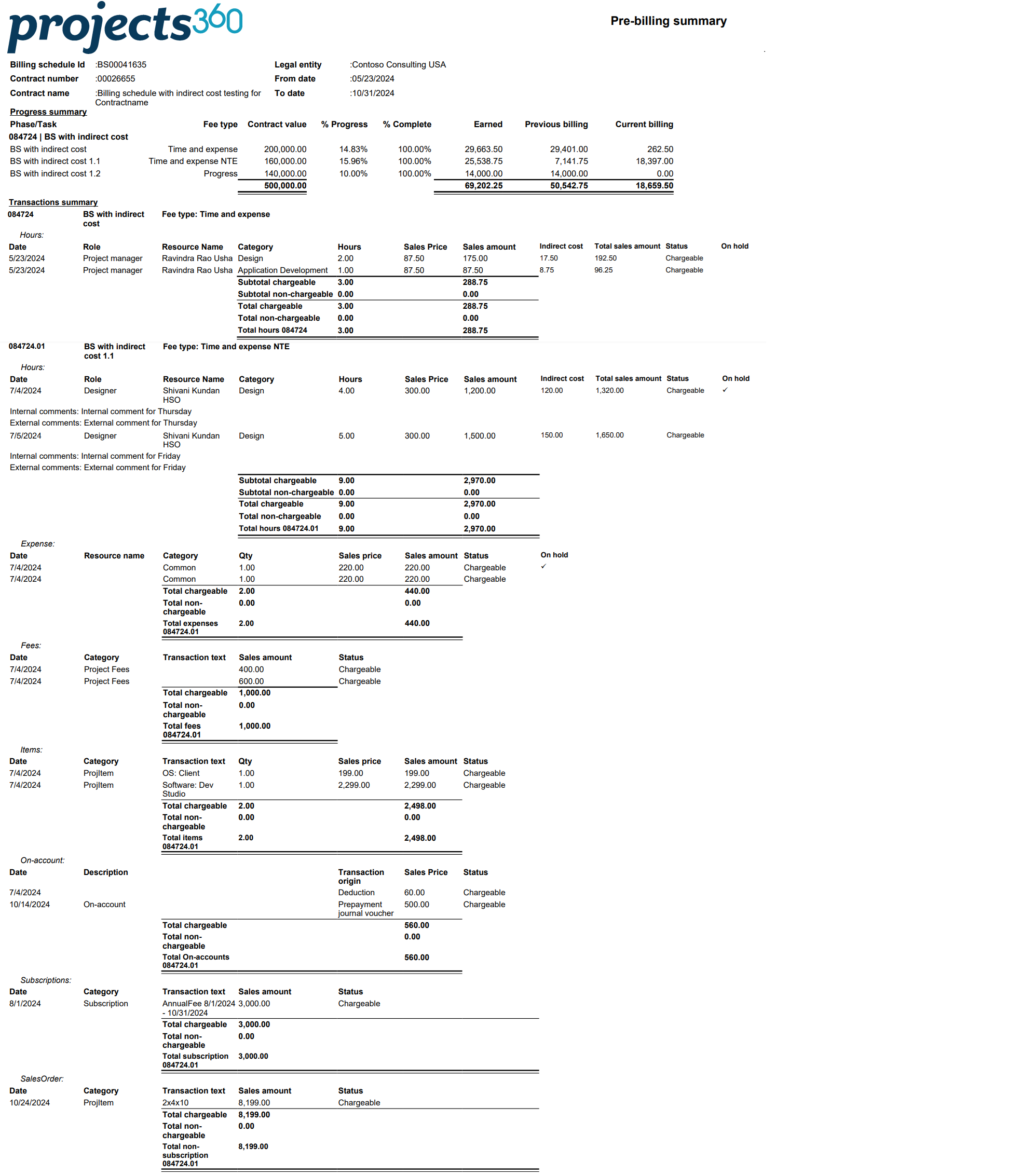
Details of the fields available on this report header are as follows:
| Field | Description |
| Company logo | Displays company logo. |
| Billing schedule Id | Displays billing schedule Id from selected billing schedule. |
| Contract number | Displays contract number related with billing schedule. |
| Contract name | Displays contract name related with contract number. |
| Legal entity | Displays legal entity related with billing schedule. |
| From date | Displays from date from process parameters. |
| To date | Displays to date from process parameters. |
Details of the fields available under Progress summary section are as follows:
| Field | Description |
| Phase/Task | Displays subproject name. |
| Fee type | Displays fee type of the subproject. |
| Contract value | Displays contract value of the subproject. |
| Progress | Displays “ progress” if the project type is Progress or displays value where Earned value is divided by Contract value and multiplied by 100.% |
| Complete | Displays “Estimated % complete” from fee management If “ETC/EAC management” is active or displays “ revenue completed” from fee management form.% |
| Earned | Displays value by multiplying Contract value * % Progress if the project type is Progress or displays value by adding Previous billing and Current billing |
| Previous billing | Displays value from “Invoiced” field from Fee management form related with selected subproject. |
| Current billing | Displays value by deducting Previous billing value from Earned value if the project type is Progress or displays sum of sales amount for all the chargeable transactions |
Details of the fields available under Transactions summary section for Hour transactions are as follows:
| Field | Description |
| Date | Display the project date from transaction. |
| Role | Display role from the related transaction. |
| Resource name | Display resource name from the related transaction. |
| Category | Displays category from the related transaction, |
| Hours | Displays hours quantity from the related transaction. |
| Sales price | Displays sales price from the related transaction. |
| Sales amount | Displays sales amount of the related transaction. |
| Indirect cost | Displays indirect cost for the related transaction. |
| Total sales amount | Displays total sales amount for the related transaction. |
| Status | Displays chargeable status of the related transaction. |
| On hold | Displays check mark if the transaction is on-hold. |
 |
Note – When the Show timesheet comments parameter is marked while generating the report, Internal comments and External comments will get displayed for the timesheet transactions. Internal and external comments on pre-billing summary review report will appear for new transaction generated after adjusting the hour transaction based on corresponding timesheet comment. |
Details of the fields available under Transactions summary section for Expense transactions are as follows:
| Field | Description |
| Date | Display the project date from transaction. |
| Resource name | Display resource name from the related transaction. |
| Category | Displays category from the related transaction, |
| Qty | Displays hours quantity from the related transaction. |
| Sales price | Displays sales price from the related transaction. |
| Sales amount | Displays sales amount of the related transaction. |
| Status | Displays chargeable status of the related transaction. |
| On hold | Displays check mark if the transaction is on-hold. |
Details of the fields available under Transactions summary section for Fee transactions are as follows:
| Field | Description |
| Date | Display the project date from transaction. |
| Category | Displays category from the related transaction, |
| Transaction text | Displays transaction text from the related transaction. |
| Sales amount | Displays sales amount of the related transaction. |
| Status | Displays chargeable status of the related transaction. |
Details of the fields available under Transactions summary section for Item transactions are as follows:
| Field | Description |
| Date | Display the project date from transaction. |
| Category | Displays category from the related transaction, |
| Transaction text | Displays transaction text from the related transaction. |
| Qty | Displays quantity from the related transactions. |
| Sales prices | Displays sales price from the related transactions. |
| Sales amount | Displays sales amount of the related transaction. |
| Status | Displays chargeable status of the related transaction. |
Details of the fields available under Transactions summary section for On-account transactions are as follows:
| Field | Description |
| Date | Display the project date from transaction. |
| Description | Displays description from the related transaction. |
| Transaction origin | Displays transaction origin from the related transaction. |
| Sales price | Displays sales price from the related transactions. |
| Status | Displays chargeable status of the related transaction. |
Details of the fields available under Transactions summary section for Subscription transactions are as follows:
| Field | Description |
| Date | Display the date from the sales order transaction generated during subscription billing. |
| Category | Displays category from the related transaction. |
| Transaction text | Displays transaction text from the related sales order transaction. |
| Sales amount | Displays sales amount of the related sales order transaction. |
| Status | Displays chargeable and non-chargeable status of the related transaction. |
Details of the fields available under Transactions summary section for Sales order transactions are as follows:
| Field | Description |
| Date | Display the date from the sales order transaction. |
| Category | Displays category from the related transaction. |
| Transaction text | Displays transaction text from the related transaction. |
| Sales amount | Displays sales amount of the related sales order transaction. |
| Status | Displays chargeable and non-chargeable status of the related transaction. |
Pre-billing summary review with Apryse tool
On projects360 parameter form, under Billing schedule tab, a new parameter “Activate Apryse markup tool” has been introduced to manage Pre-billing summary review in PDF format. These capabilities enable users to make the required changes directly on the PDF invoice, ensuring accuracy and reducing the need for manual adjustments. User needs to set the ‘Activate Apryse markup tool’ field value to ‘Yes’ in order to use this feature and define the related fields.
Update references in DocuRef batch process hyper link is provided to update the document process on the existing prebilling summary review document. User can set the apryse parameter from below path:
Go to Project management and accounting > Setup > projects360 parameter > Billing schedule Tab
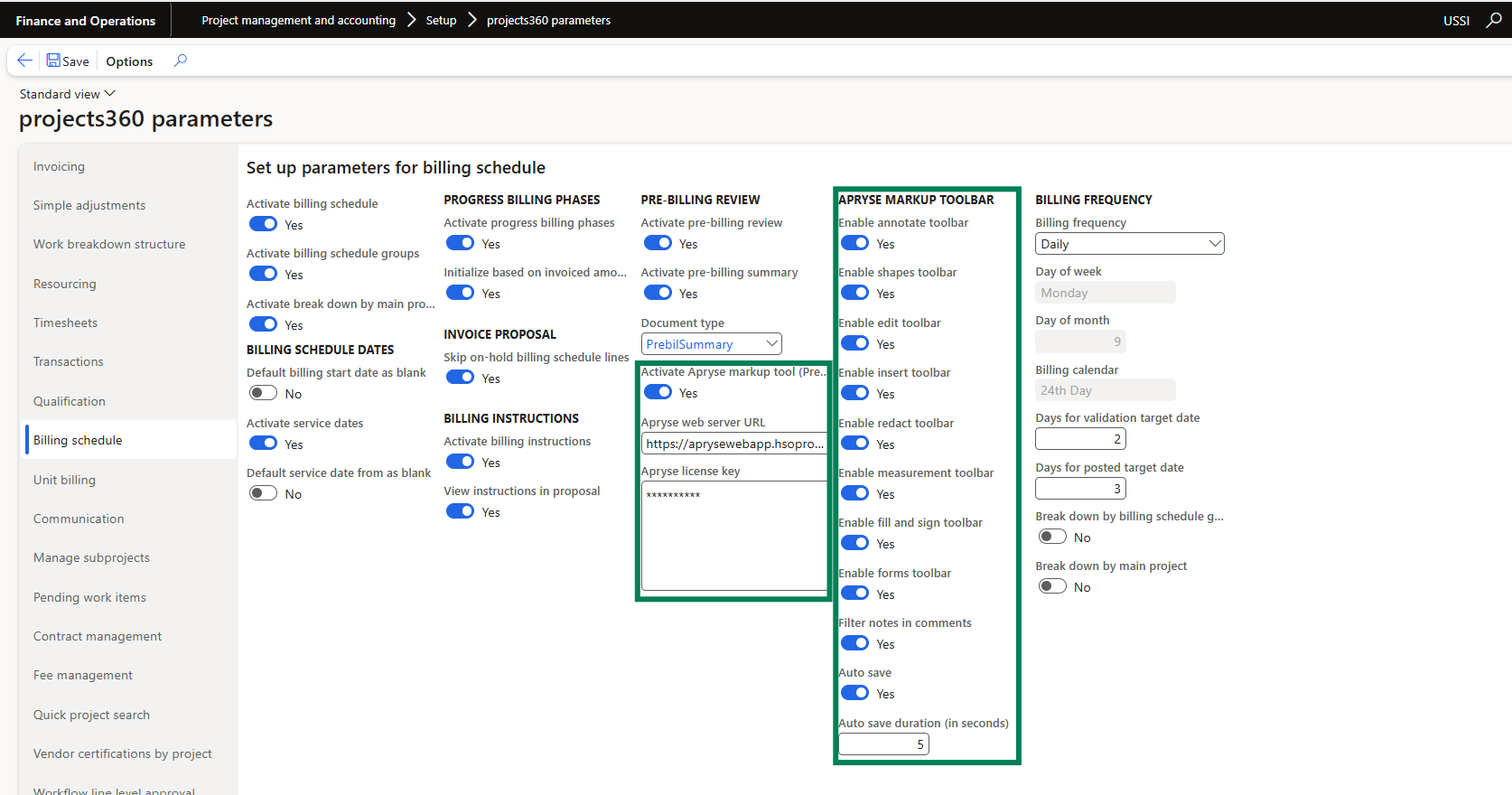
| Field | Description |
| Activate Apryse markup tool | Set this field to Yes, to activate the feature. |
| Apryse web server URL | Set this field with the URL link where the apryse tool is installed. |
| Apryse license key | Define license key. |
| Enable annotate toolbar | Set this field to Yes, to highlight, write text, underline, Strikeout, Squiggly, adding notes. |
| Enable shapes toolbar | Set this field to Yes, to highlight with different shapes. |
| Enable edit toolbar | Set this field to Yes, to crop the page. |
| Enable insert toolbar | Set this field to Yes, to insert images, attach files, add signatures, add existing stamps or create custom, point out and add text. |
| Enable redact toolbar | Set this field to Yes, to redact the sensitive information, financial information. |
| Enable measurement toolbar | Set this field to Yes, to measures area, perimeter, height, length, or distance between shapes in PDF. |
| Enable fill and sign toolbar | Set this field to Yes, add existing stamps or create custom, to add text, add signatures, add cross sign, tick sign, dot sign, add calendar. |
| Enable forms toolbar | Set this field to Yes, to add signature field, add text, add checkbox, add radio button, add list box, add combo box. |
| Filter notes in comments | Set this field to Yes, to filter the notes in the comments section. |
| Auto save | Set this field to Yes, to auto save the markup changes. |
| Auto save duration (in seconds) | User can define the duration in seconds based on which changes will automatically save. By default, this value is set to 5 seconds. |
Once the user has activated and configured Apryse tool, pre-billing summary review can be used in PDF format. Based on the parameters selected, different edit options will be made available for the users to highlight, comment, edit and insert.
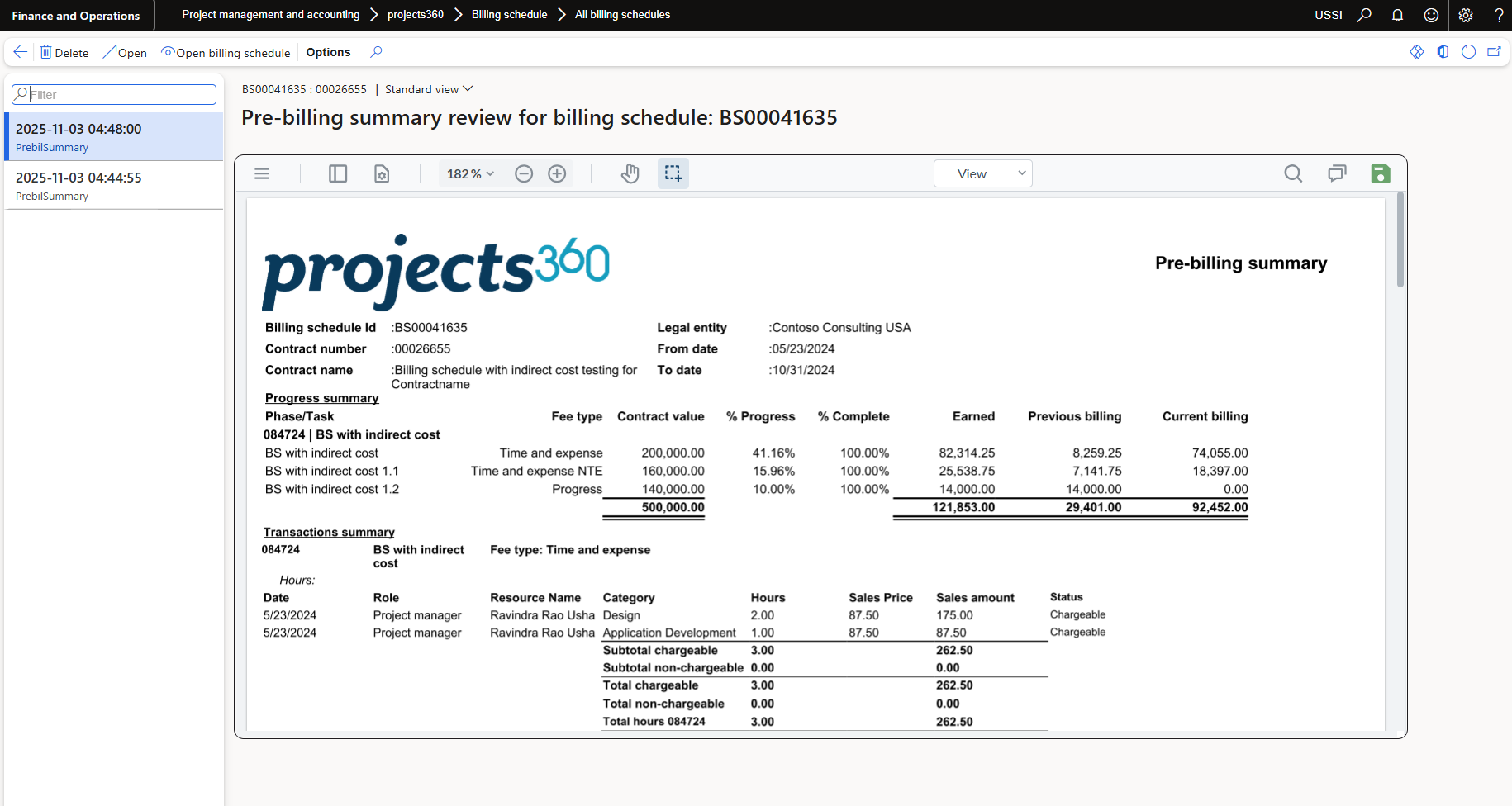
- This tool enables many functions for the users where we can download the report with certain options, save the report as PDF or as image, print the report with annotations and comments.
- User is provided panel option where user can insert new pages, replace the file, extract the information or delete the file.
- User is provided view controls where user can rotate clockwise, counterclockwise, single page, double page, full screen.
- User can PAN the page, search words on PDF and filter the comments based on various provided options.
- Based on the parameters activated on the projects360 parameters form, User can use annotations, shapes, edit, insert, redact, measure, fill and sign, user form tools and filter the notes on the PDF.
- When a user annotates on the form, the Save button turns red as a reminder. After the form is saved, the button will change to green.