


Parameter Setup
On projects360 parameter form, under billing schedule tab, a new parameter “Activate pre-billing summary” has been introduced to control the pre-billing summary functionality. When this checkbox is turned on ‘Yes’, the Pre-billing summary feature is activated.
Go to Project management and accounting > Setups > projects360 parameters > Billing schedule Tab.
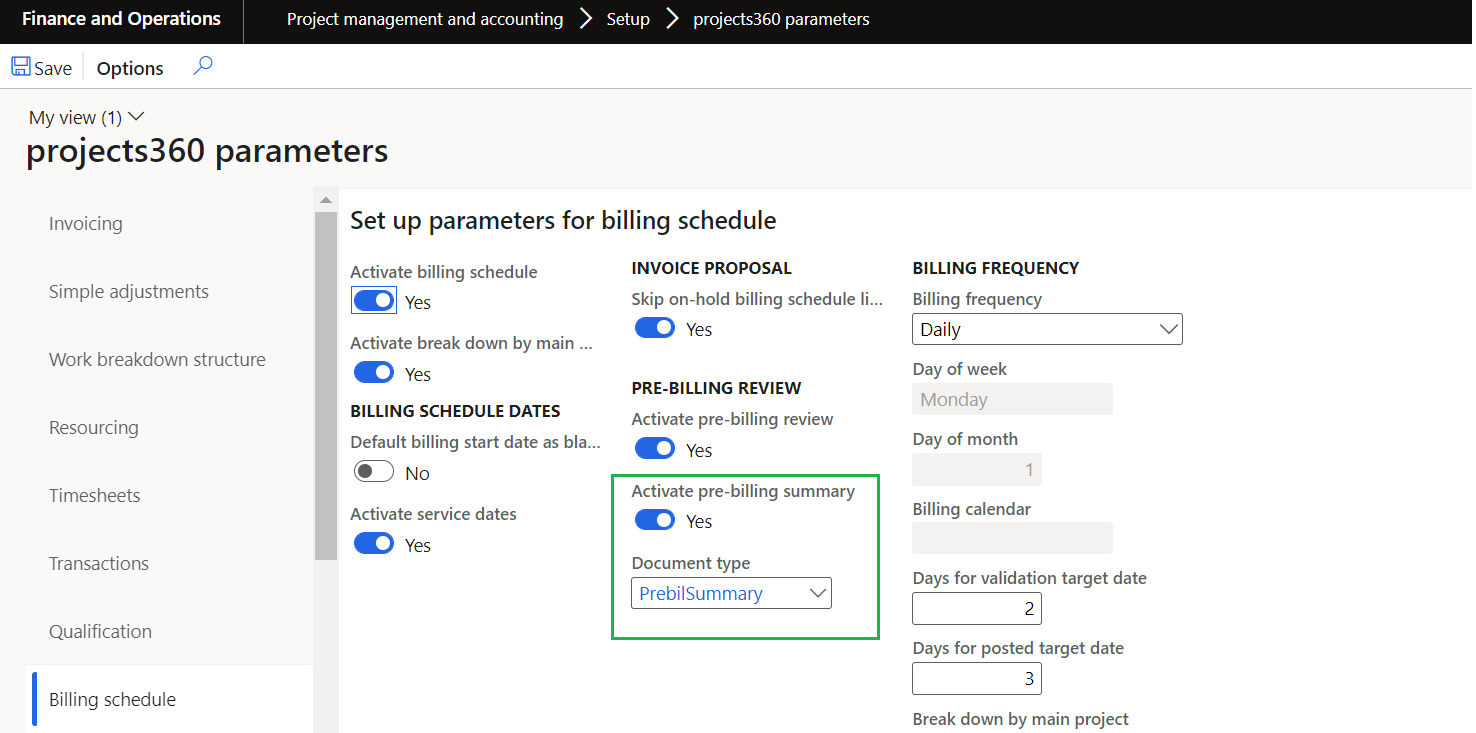
Details of the fields available on this tab are as follows:
| Field | Description |
| Activate pre-billing summary | When this parameter is set to Yes, then user will have an option to generate and review pre-billing transactions through a report. |
| Document type | Select the document type that will be used to generate pre-billing summary report. |
Pre-billing summary
New button is introduced to generate pre-billing summary where a report will be created showing a summary of % progress and transactions for all the projects in the structure from “Billing schedule” form. This report will be available for the review where users will be able to highlight, makes notes, corrections or any edits.
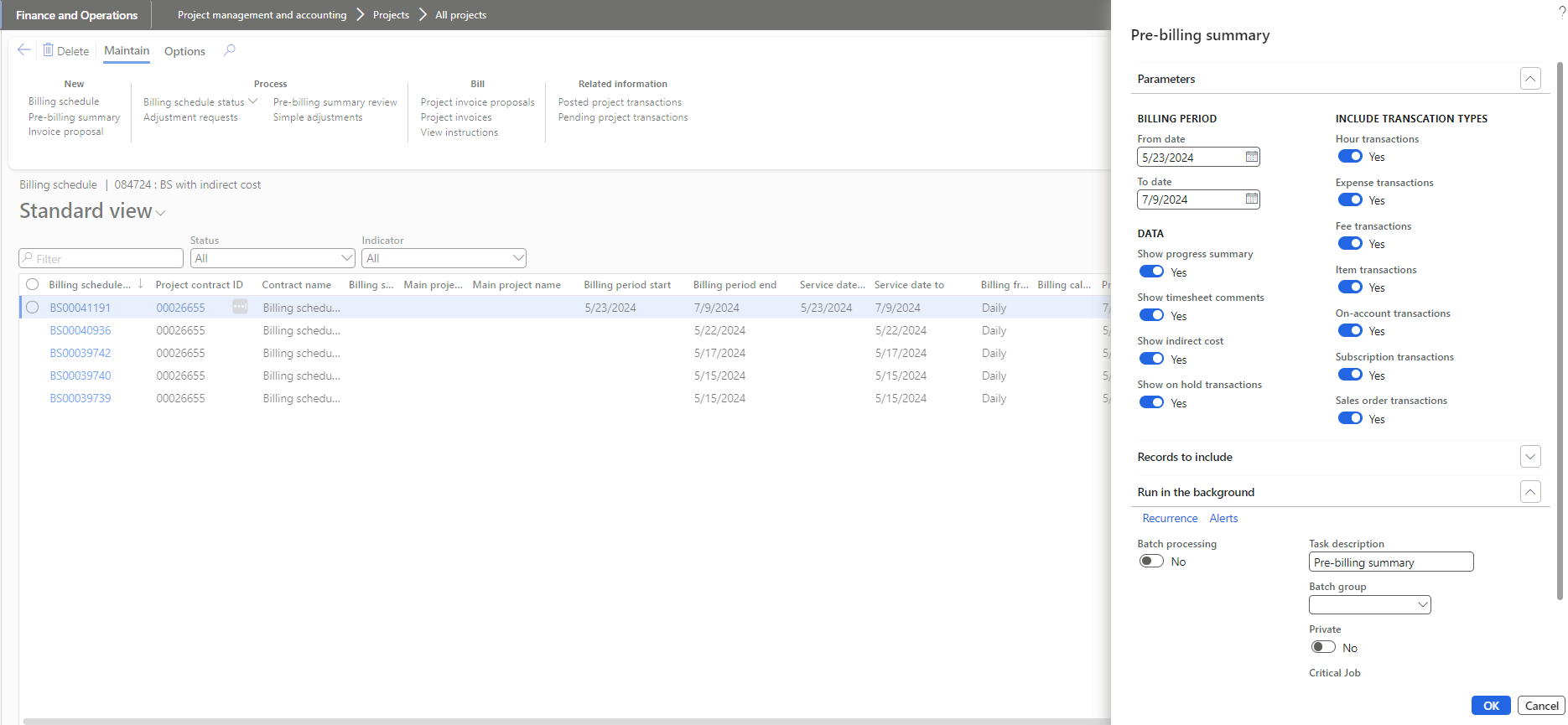
Details of the fields available on this form are as follows:
| Fields | Description |
| From date | User can define the From date to include the project posted transactions. |
| To date | User can define the To date to include the project posted transactions. |
| Hour transactions | User can select this option to include hour transactions. |
| Expense transactions | User can select this option to include expense transactions. |
| Fee transactions | User can select this option to include fee transactions. |
| Item transactions | User can select this option to include item transactions. |
| On-account transactions | User can select this option to include on-account transactions. |
| Subscription transactions | User can select this option to include subscription transactions. |
| Sales order transactions | User can select this option to include sales order transactions. |
| Show summary progress | When this parameter is turned on, ‘Progress summary’ section will be printed on the report. |
| Show timesheet comments | When this parameter is turned on, timesheet internal and external comments will get displayed for each hour transaction. |
| Show indirect cost | When this parameter is turned on indirect cost and total sales amount will get displayed on the pre-billing summary report. |
| Show on hold transactions | When this parameter is turned on, on-hold transactions will get displayed on the pre-billing summary report. |
| OK | On clicking OK, pre-billing summary report will get generated and tiff file will get attached. |
| Cancel | On clicking Cancel the process will get cancelled. |