


New report has been introduced to allows users to generate and view project statement by date range view. Users can generate data with specific date range filters and retrieve relevant data for the project. Additional filter options are also available to further refine the output. This form will give a quick view of the progress on the project.
This form will show the Accrued revenue, Invoiced revenue, Total revenue, Actual hours, Labor cost, Expense cost, Item cost, Total cost, customer advances for the project based on entered date range.
Go to Project management and accounting > projects360 Inquiries and reports > Project statements > Project statement by date range view
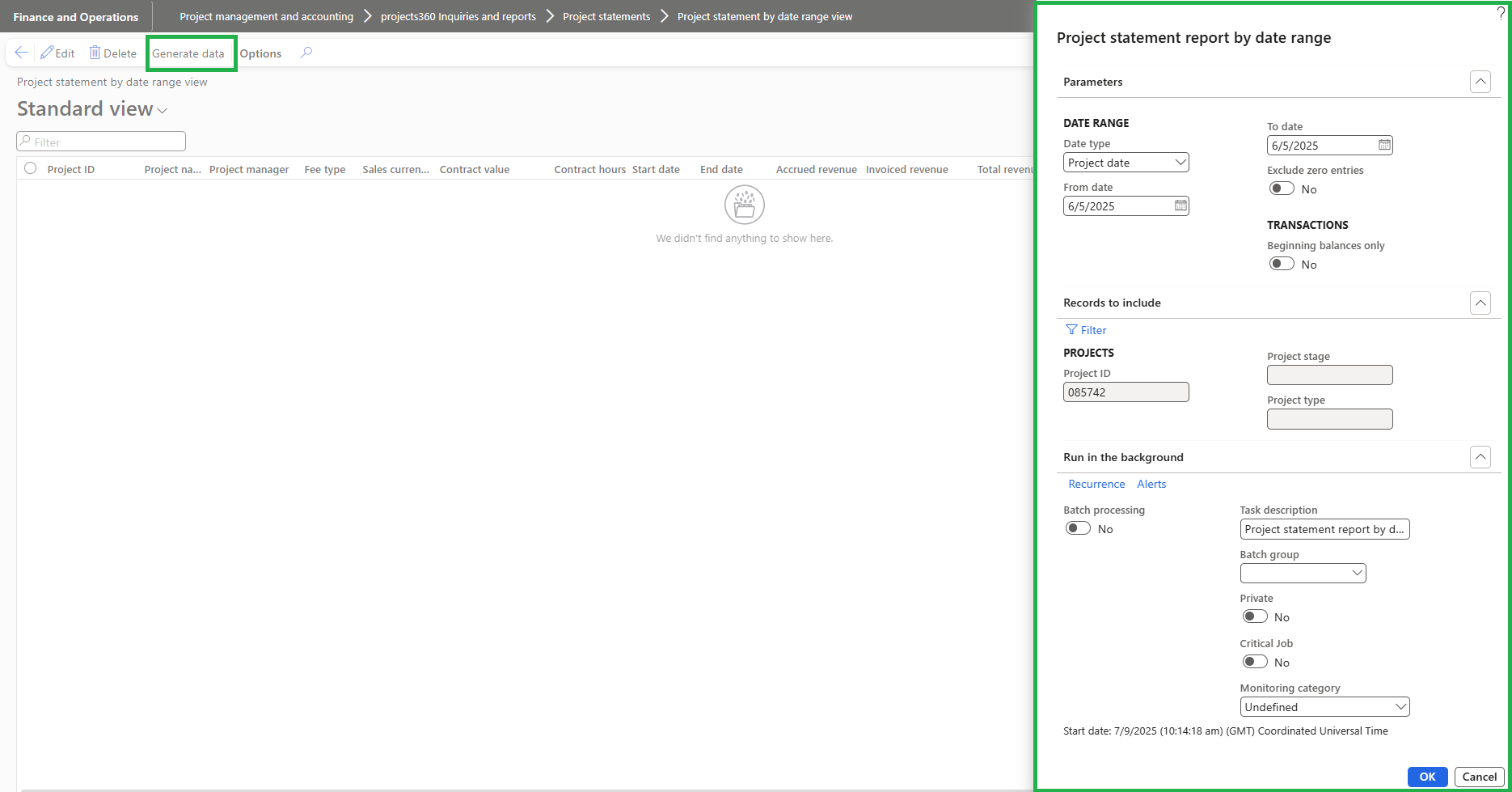
Details of the buttons available on this form are as follows:
| Buttons | Description |
| Delete | User can delete the records by clicking on this button. |
| Generate data | User can generate the data for the project. |
Details of the fields available on project statement report by date range are as follows:
| Fields | Description |
| Date type | Users can set the Date type as Project date or Ledger date. The selected option determines which transactions are included: • Project date – Refers to the period during which transactions were recorded against a project. • Ledger date: Refers to the period during which transactions were recorded in the general ledger. |
| From date | Enter a date if user want to limit the calculation to project transactions that were posted after that date. |
| To date | Enter a date if user want to limit the calculation to project transactions that were posted before that date. |
| Exclude zero entries | When the user set this to yes, it will exclude the projects where there are no transactions. |
| Beginning balances only | When users set this to yes, it is only showing the beginning balance details present on that project. |
| Project ID | User can select the project IDs. Based on the selected project it generates the data. If there is no project ID selected it will generate data for all projects. User can select more than one project ID. |
| Project stage | Users can select the project stage. By default this field will be set as blank. |
| Project type | User can select the project type. By default this field will be set as blank. |
Once user clicks on Ok it generate the data for the project as shown below.
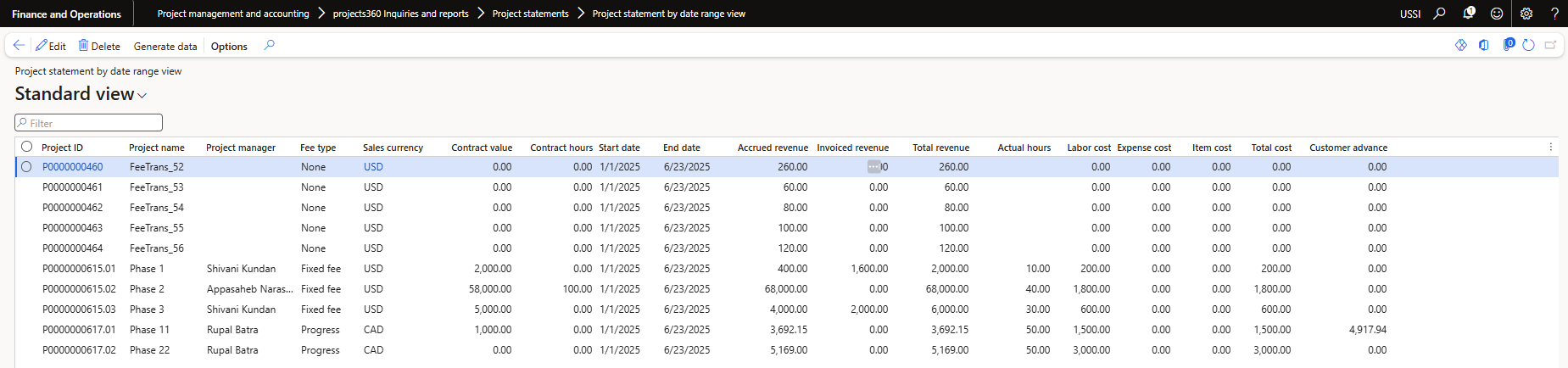
Details of the fields available on this form are as follows:
| Fields | Description |
| Project ID | Display project ID. |
| Project name | Display project name. |
| Project manager | Display project manager. |
| Fee type | Display fee type of project. |
| Sales currency | Display sales currency of the project. |
| Contract value | Display the contract value of the project. |
| Contract hours | Display contract hours for the project. |
| Start date | Display the start date. It defaults from entered from date. |
| End date | Display the end date. It defaults from the entered To date. |
| Accrued revenue | Displays the accrued revenue of the project. |
| Invoiced revenuer | Display the invoiced revenue of the project. |
| Total revenue | Display the total revenue of the project. |
| Actual hours | Display the actual hours of the project. |
| Labor cost | Display the amount that is posted to the cost amount for hour transaction. |
| Expense cost | Display the amount that is posted to the cost amount for expense transaction. |
| Item cost | Display the amount that is posted to the cost amount for item transaction. |
| Customer advance | Display the amount of posted customer advance for the project. |