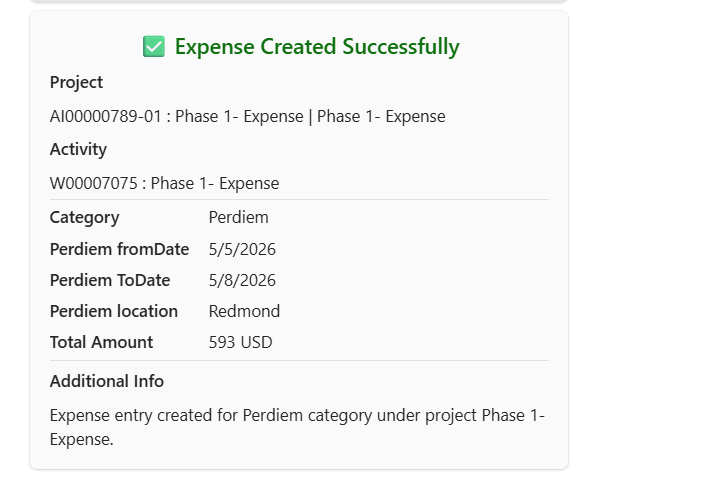


The Expense agent simplifies the creation of daily allowance claims by automating rate lookups and meal reduction calculations. Since receipts are not required for per diem expenses, the agent focuses on travel duration and location, fetching rates directly from your F&O configuration to ensure compliance with company policy. It supports both standard per diem entries and advanced meal reduction scenarios, where the allowance is dynamically adjusted based on meals provided (breakfast, lunch, or dinner) during the trip.
Create per diem expense.
The process begins when you provide a prompt such as “Create per diem expense,” at which point the agent automatically assigns the correct category and initiates project selection.
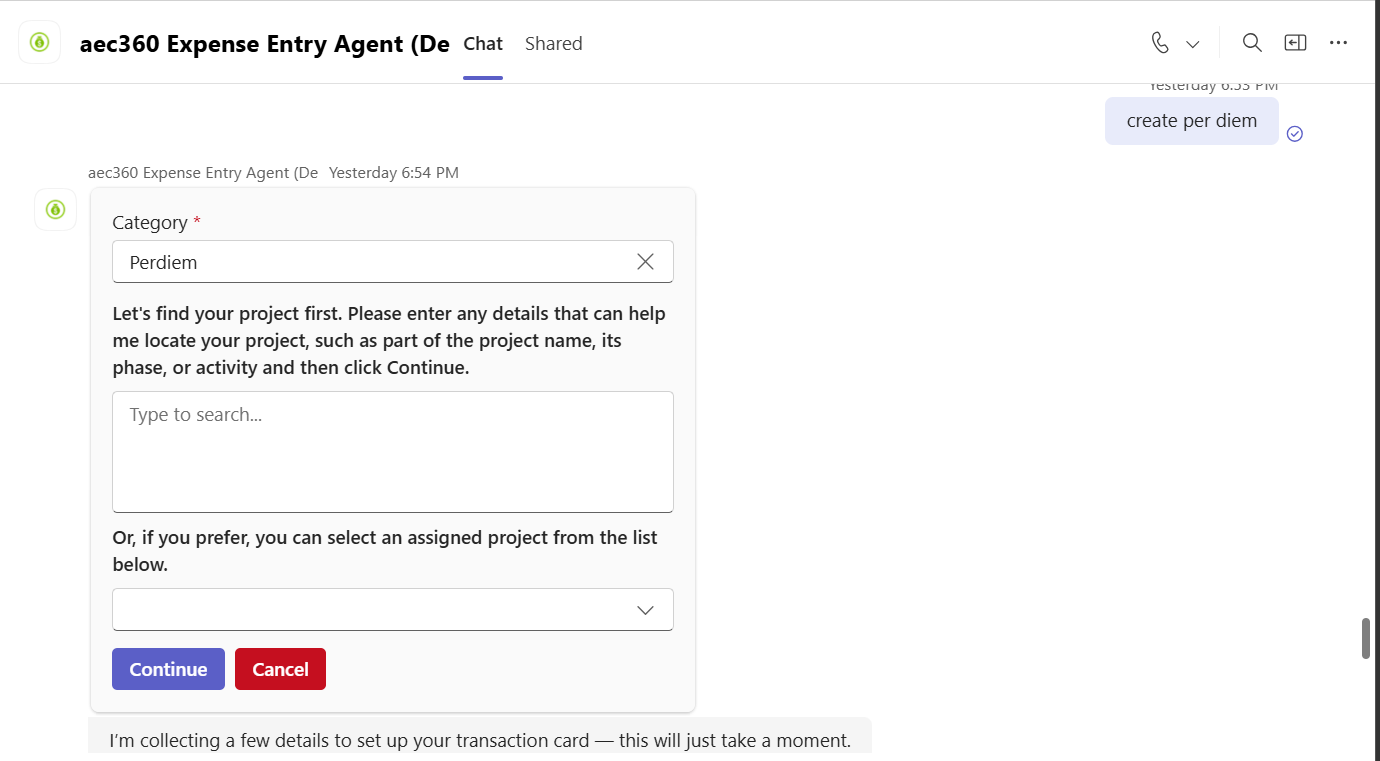
Once the project is confirmed, you select the travel Location and the Per diem from/to dates. If no meal reduction parameters are defined in your F&O setup, the agent displays a simplified review card where you can verify the dates and location before finalization.
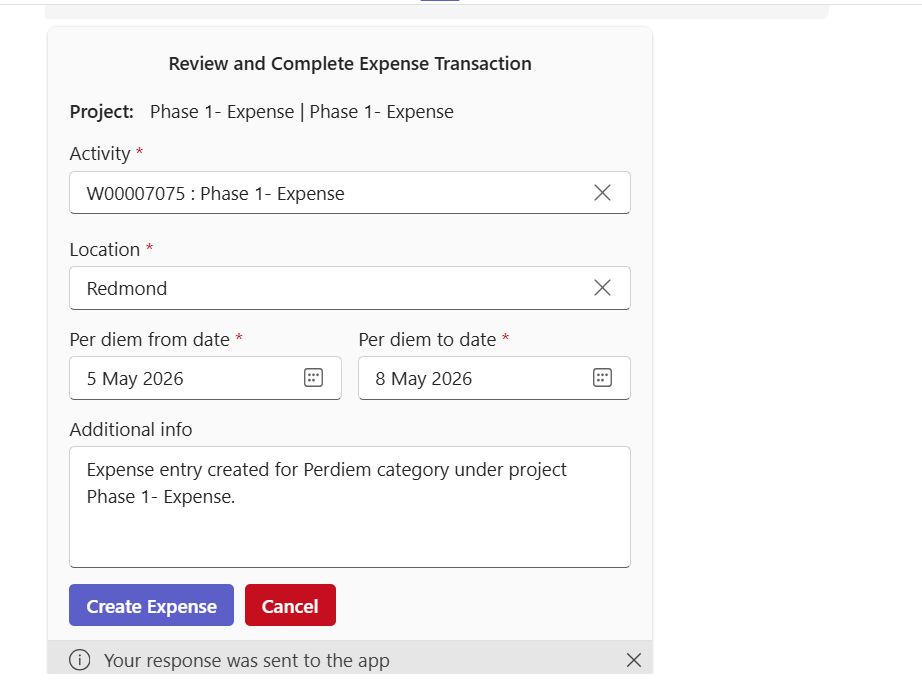
The system automatically calculates the total amount based on the daily rates configured in the system. You can review and edit these fields to ensure the dates and destination accurately reflect your travel before selecting Create Expense.
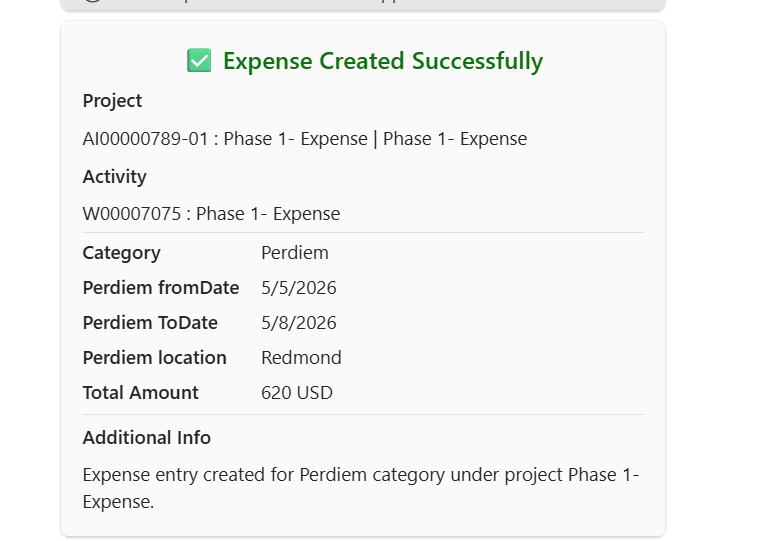
Create per diem expense with Meal reductions.
In scenarios where the F&O configuration includes meal reduction percentages, the Expense Agent updates the review interface to include a Meals excluded from allowance section. During the review step, you enter the number of days for which breakfast, lunch, or dinner was already provided (e.g., a hotel-provided breakfast or a client lunch).
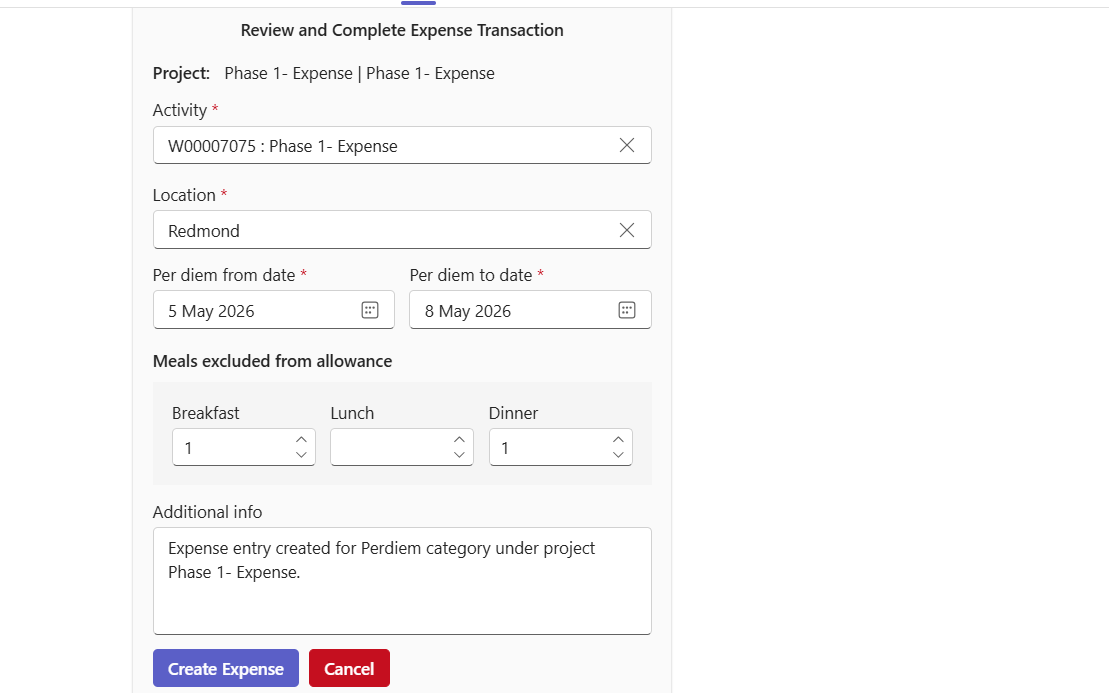
The agent then performs a real-time calculation, applying the reduction percentages defined in the Expense Management parameters to the base per diem rate. This ensures the final Total Amount created in F&O is accurate and compliant with the company’s deduction policy. After reviewing the adjusted totals and trip details, you can edit any fields if necessary before selecting Create Expense to generate the record in F&O. The finalized transaction is then displayed as a summary card once it is successfully synced.