


The Expense agent streamlines the recording of travel costs by automating distance calculations and rate application. The agent supports manual mileage entry as well as an intelligent map-reading feature that extracts travel distance and route details directly from a map snapshot. It dynamically applies the correct reimbursement rate based on your F&O hierarchy, supporting both standard rates and mileage rate tiers.
Create mileage expense through manual prompt.
Entering a mileage expense is simplified through natural language. Since receipts are not required for mileage, the process focuses on distance and project allocation.
When you enter a prompt such as “Create mileage expense,” the agent automatically sets the expense category to Mileage. The project selection process then follows the same flow as other expenses, where the agent prompts you to search for and select the appropriate project.
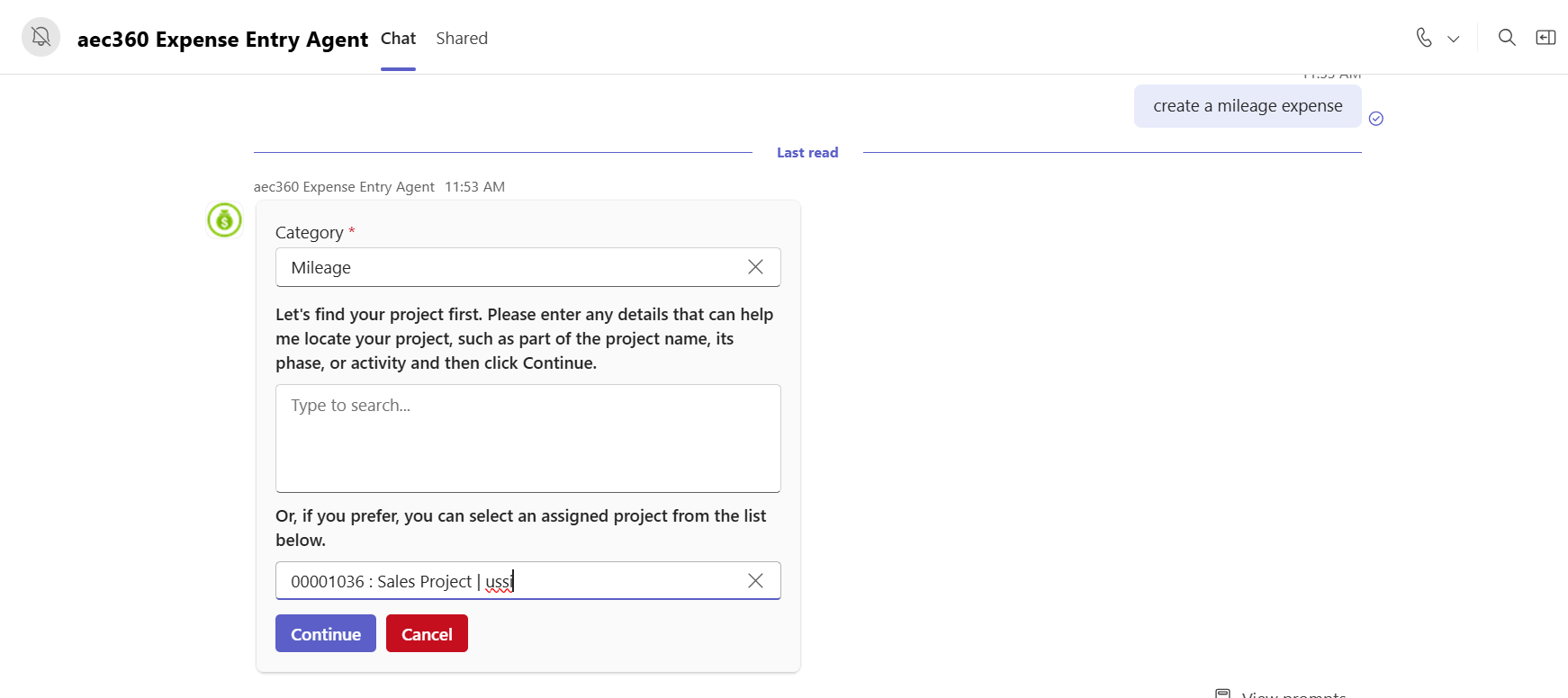
Once the project is confirmed, the user manually enters the distance traveled in the Mileage field on the expense card. The agent then dynamically retrieves the rate per mile by referencing the F&O hierarchy, prioritizing any defined mileage rate tiers or defaulting to the standard mileage rate when specific tiers are not available.
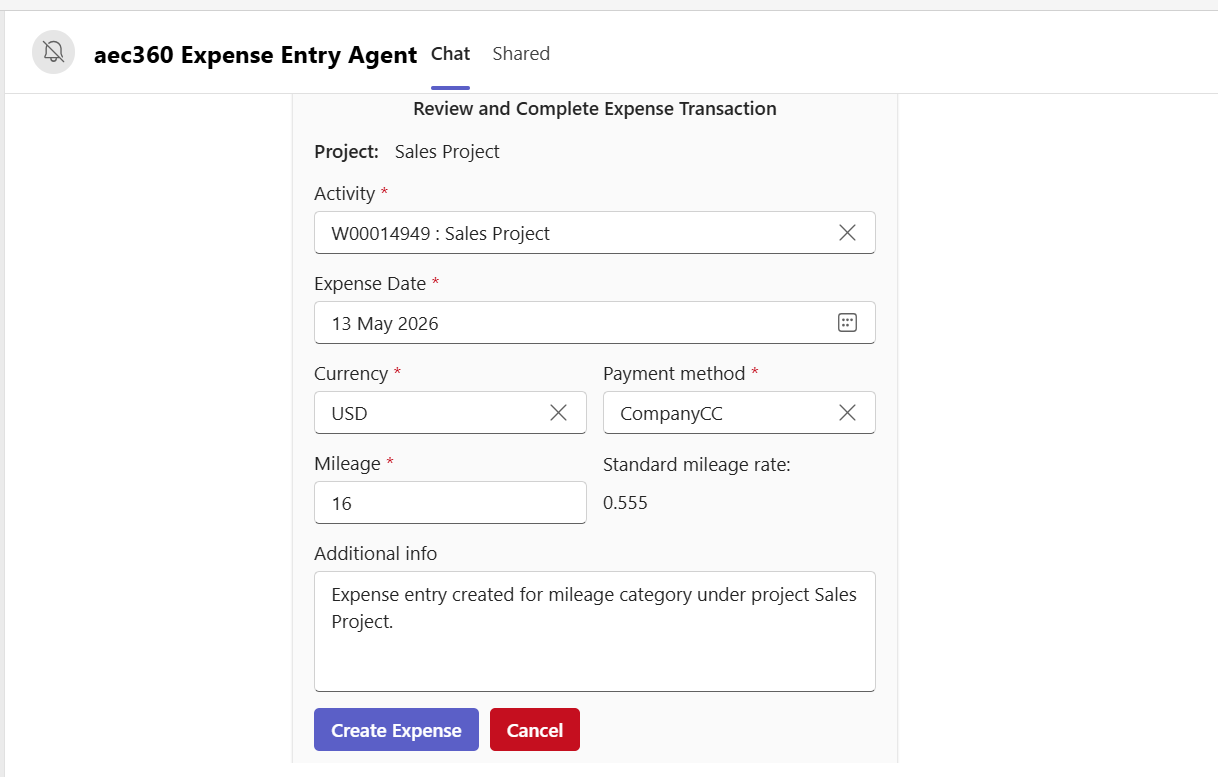
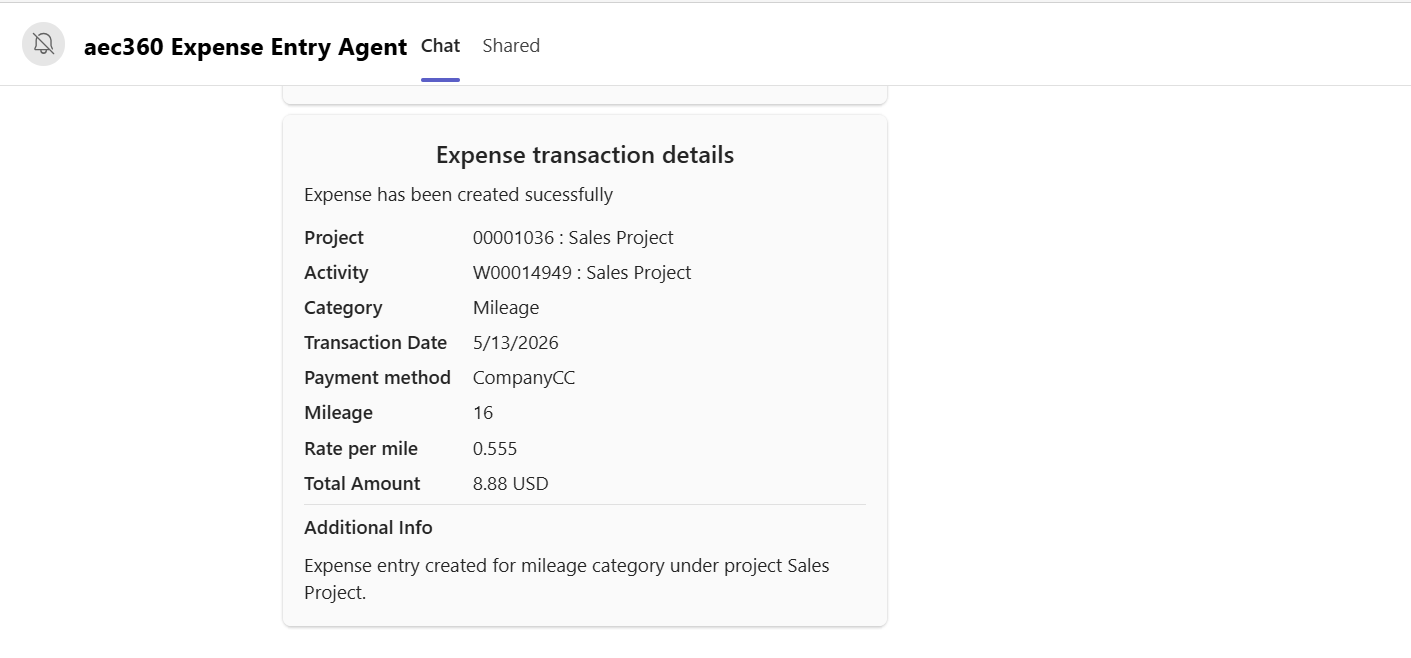
After the total amount is calculated and reviewed, you select Create Expense to display a summary card and sync the record to F&O.
Create mileage expense through uploading the map.
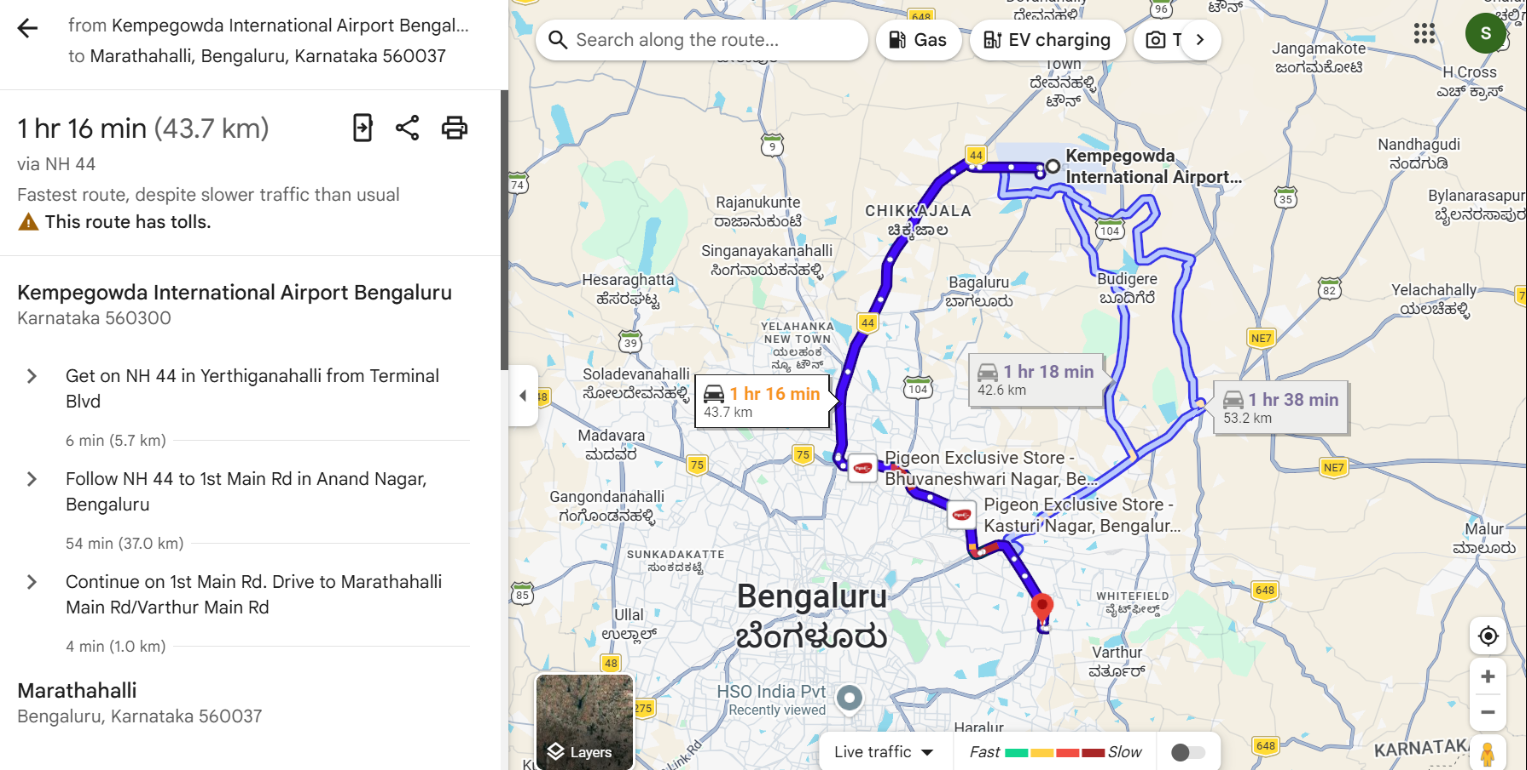
For users who prefer automated distance entry, the agent offers an intelligent map-reading feature. The process begins by uploading a map snapshot that shows the travel route and distance.
The agent automatically sets the expense category to Mileage. The project selection process then follows the same flow as other expenses, where the agent prompts you to search for and select the appropriate project.
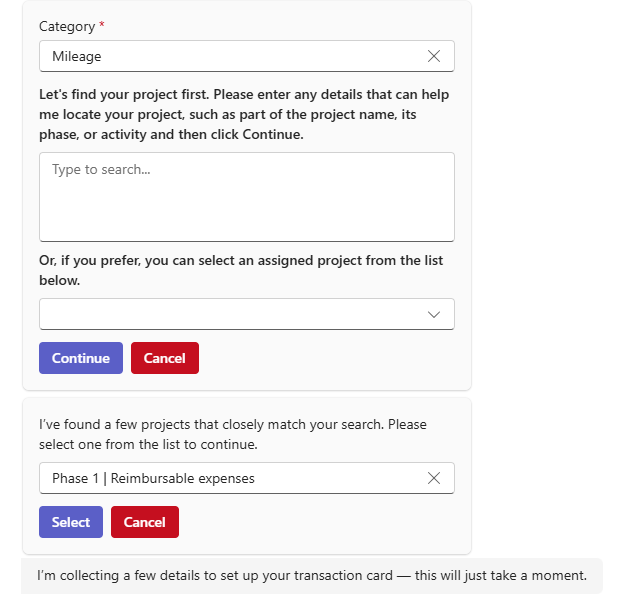
The agent analyzes the image to extract the exact distance and route details in both kilometers and miles, automatically populating the Mileage field and adding the route description (such as the starting point and destination) in the Additional Info section.
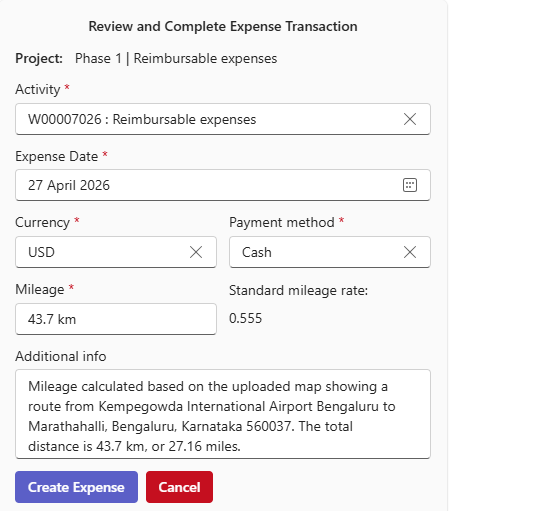
Before the expense is created, you can review the card and manually edit fields such as currency or mileage if the snapshot requires adjustment. The reimbursement rate is applied using the same F&O hierarchy as standard entries.
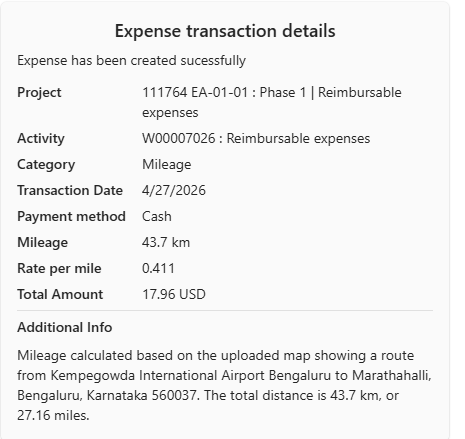
Notably, when the expense is finalized, the uploaded map image is automatically attached to the Receipts section of the unattached expense line in F&O, providing a digital audit trail of the travel route.